
Catalog Filters: A Practical Guide to Finding Products Faster
The Catalog Explorer keeps growing, so we are sharing a practical, public guide to the filters that help you narrow results quickly without losing the items that matter.
Quick-start workflow (2 minutes)
- Start broad with a keyword search.
- Choose a brand from the left panel or the featured brands strip.
- Check one to three categories that match your target product type.
- Add a minimum and/or maximum price.
- Pick a sort order that fits your goal.
- Review the active filters bar and remove anything too strict.
- Save or share the view if you plan to reuse it.
Filters at a glance
| Filter | What it does | Best for | | --- | --- | --- | | Search | Narrows the list by keywords. | Starting a broad discovery pass. | | Brand | Limits results to a single brand. | Brand-specific sourcing. | | Category | Lets you pick multiple product categories. | Browsing families like skincare, hair, or sun care. | | Price range | Sets a minimum, maximum, or both. | Staying within target margins. | | Sort | Groups or orders results (category, name, brand, price). | Scanning the list efficiently. |
Build smart combinations
- Begin with search plus category, then add a brand if needed.
- Use price as the final tightening step.
- Watch the filters count badge. If it climbs too fast, loosen one constraint.
- Use the active filter chips to remove a single filter without resetting everything.
Sorting and view modes
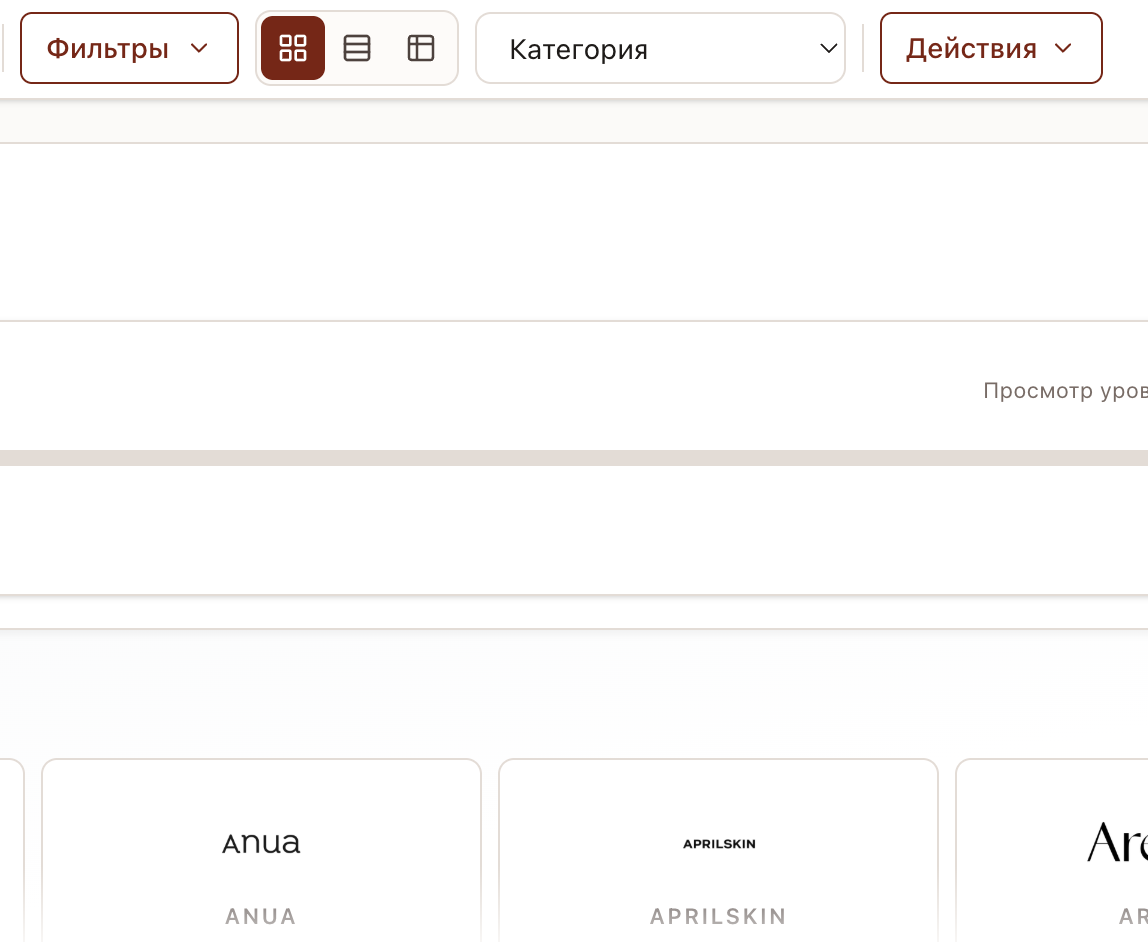
Sorting does not change your filters, but it changes what you see first. For browsing, group by category or by product name. For buying, sort by price to compare options quickly. Switch between grid, list, and table to match the detail level you need.
Save or share your view
If your account supports saved filters, use the Actions menu to store a preset and recall it later. Filters also persist in the URL, so bookmarking or sharing a link is the fastest way to keep a view.
Troubleshooting empty results
- Remove the price range or widen it.
- Reduce category selections to one or two.
- Clear the brand filter and try a new keyword.
- Reset all filters and rebuild from the top.
Example workflows
- Restock a known brand: Select the brand, add a category, then sort by price.
- Find budget-friendly items: Search a keyword, set a maximum price, then group by category.
- Explore a new category: Choose a category, browse by name, then add a brand if needed.
Ready to filter faster?
Catalog filters are designed to stack. Start light, refine step by step, and you will land on a shortlist that is easy to review and share.